Sticky notes
Sticky notes allow you to annotate flows with documentation, comments, and organizational information directly on the flow canvas. Notes help document workflow logic, add TODOs, or explain complex sections to team members.
To document and visually cluster a set of nodes, use flow groups instead.
Creating sticky notes
Notes can be placed anywhere on the canvas for general comments or documentation.
Method 1: Toolbar button
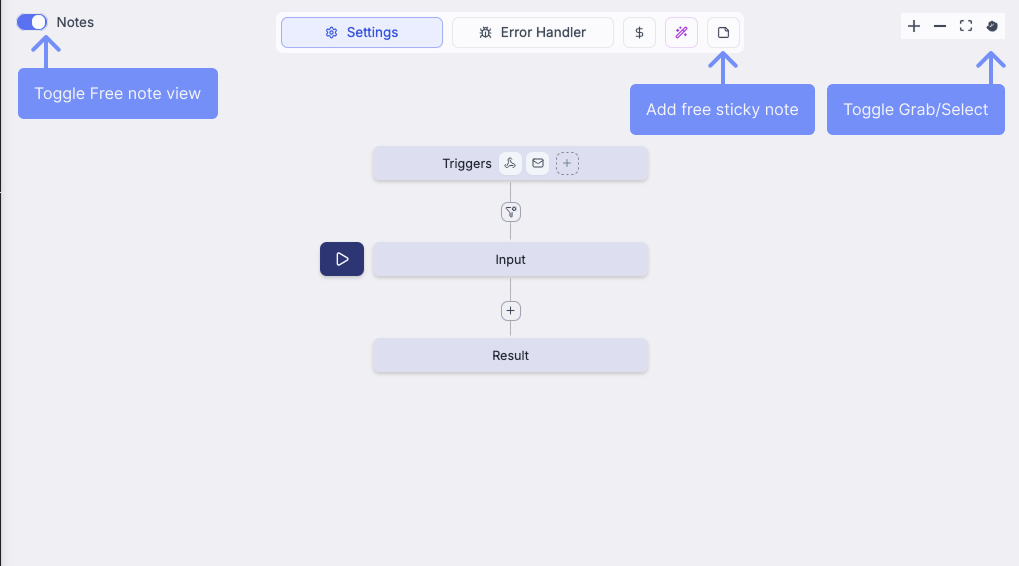
- Click the sticky note button in the top toolbar
- Drag and drop on the canvas to position the note
Method 2: Context menu
- Right-click anywhere on the canvas
- Select "Add sticky note" from the context menu
Managing sticky notes
Editing content
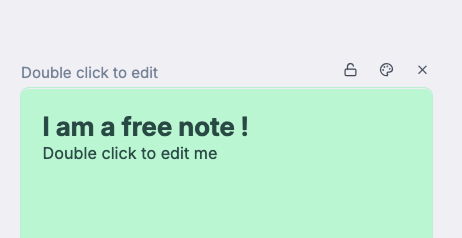
Double-click any note to edit its content. Notes support GitHub-flavored Markdown (GHMd) for formatting.
Customizing appearance
Each note has an action bar in the top-right corner with the following options:
- Color picker: Change note color (supports both light and dark themes)
- Lock icon: Lock the note to prevent accidental editing or movement
- Delete button: Remove the note from the flow
Positioning notes
Drag notes freely around the canvas to position them where most relevant. Locked notes cannot be moved until unlocked.
Hiding and showing notes
Use the toggle button in the top-left of the flow pane to hide or show all sticky notes. This is useful when you need a clean view of the flow logic or when presenting to stakeholders.